
How to Use Video Background Remover Free for Clean Edits - Detailed Guide
A video background remover helps remove clutter and keeps the focus on the subject. Such a modern AI Background Remover make this task much faster now. So, this guide will show you easy ways to clean your video backgrounds.


Professional-looking videos are important to get attention on any social media platform. Yet, extra backgrounds can sometimes pull focus away and make videos look less clear. Therefore, creators need easy tools to improve videos without wasting much time or effort.
A video background remover helps remove clutter and keeps the focus on the subject. Such a modern AI Background Remover make this task much faster now. So, this guide will show you easy ways to clean your video backgrounds.
Part 1. Why Use Video Background Remover Free Tools Today
Social media success often depends on clean and visually appealing video content. So, this part helps you to explore the main benefits of using a video background remover free tool:
1. No Screen: AI tools remove backgrounds, so you do not need green screen setups. Thus, users can record videos anywhere and still get clean background results easily.
2. Professional Look: Clean backgrounds help the subject stand out in videos and social posts. So, videos look more polished and attractive for marketing and sharing with online audiences.
3. Marketing Clips: Businesses use background removal to highlight products in online advertisements and online campaigns. Product videos look better when placed on clean, professional backgrounds everywhere.
4. Educators' Presentations: Teachers and trainers use it for clear lessons and presentations in online classes. It also helps in remote work, keeping backgrounds consistent and confusion-free video calls.
5. Social Media: Perfect for TikTok Reels and Shorts with clean and simple background videos. Therefore, creators can make eye-catching posts that stand out on feeds quickly.
Part 2. Ways to Erase Video Background Without Green Screen
There are multiple tools available to help creators remove video backgrounds. The following parts help you explore the top free video background remover tools to remove video background effortlessly:
3 Online Tools to Erase Video Background Without Green Screen
Many creators want an easy and online background removal tool, so below are the top 3 online tools to replace video background:
1. VEED.io
VEED is an online video editor that also erase video background instantly with one-click AI. While removing the background, the video’s resolution remains unchanged. The tool supports various aspect ratios, such as 16:9 and 1:1. After removing, you can preview and download a video in 4K quality. So, follow the steps below to remove videos’ background by using this tool:
Step 1. To get started, visit the official “VEED” website and click “Upload Files” to add videos to the tool.

Step 2. After adding a video, opt for the “Remove Background” option from the left side panel. Once it is removed, preview the video and download it.

2. Kapwing
This is another video BG remover tool that lets users upload videos from sources like Google Drive and Vimeo. Kapwing removes video backgrounds instantly with a single-click AI tool. It even supports the chroma key tool for solid color background control. Hence, review the given guide to remove a video background using Kapwing:
Step 1. After accessing the “Kapwing” official website, press the “Click to Upload” option.

Step 2. When you add your video to the tool, go to the “Effects” tab and choose “Remove Background”. Once it is removed, preview the video and opt for “Export Project.”

3. Media.io
You can also try this tool, as it supports videos up to 50 MB with a duration of up to 10 minutes. This background eraser for video also removes backgrounds without green screen using smart AI subject detection technology. Your generated results will remain for 7 days in the cloud to access it anywhere. Explore the steps below to cut out the background from a video:
Step 1. Access “Media.io” and hit the “Upload Video” option from the main interface.

Step 2. The tool will automatically proceed with the background erasing process

Step 3. You can preview it after removing the background from the video. Next, opt for the “Download” button in the top right corner to download.

Top 3 Desktop Tools to Remove Background from a Video
This particular section provides you the top 3 desktop tools to delete video background:
1. Filmora
Wondershare Filmora is an advanced video editing tool that allows removing the background from a full video without any time or length restrictions. During the removal process, it maintains original video quality while removing the background without reducing the resolution output. The tool has 2 AI Cutout Modes, such as Advanced Cutout Mode and Quick Cutout Mode, that detect objects and remove backgrounds with an advanced algorithm.
For multitasking, Filmora handles multiple subjects in one video and removes backgrounds with good precision. Users can even adjust feather settings to soften edges and improve blending accuracy. In addition, it even offers tools to enhance video quality after background removal with smart enhancement tools. Review the guide below to delete video background using Filmora:
Step 1. Import a Video
Open the tool and click the “Import” button from the main interface to add a video.

Step 2. Remove Background from a Video
After adding a video, drag-and-drop it to the timeline and double-click on it. Next, go to the “AI Matting” tab, then enable the “AI Portrait Cutout” option and opt for “Advanced Cutout Mode.”

Step 3. Preview and Download
When your video’s background is removed, use the preview feature to watch it for clarity. At last, opt for the “Export” button and choose the “Export to Device” option from the menu.

Pro Tip: If you are producing commercial ads, product promos, or social media campaigns, you can also explore Filmora.TV. It acts as a dedicated AI production platform tailored for TVCs and brand videos, offering tools like AI camera movement control and team asset management to help you quickly generate high-impact 15-second video ads from your cleaned clips.
2. Adobe Express
Editors can also use this erase video background tool that removes video backgrounds instantly using a 1-click AI system. You can even preview a video before downloading it after removing the background. Along with this, it allows users to add a video of 2 minutes. Adhere to the steps below to remove the background from a video using Adobe:
Step 1. From the main interface of “Adobe Express,” opt for the “Upload from Device” option.

Step 2. After adding a video, opt for the “Remove Background” option from the left side. Once the background is removed, click “Download.”

3. Canva Pro
This tool also lets users remove the video background in 90 seconds. While using Canva Pro, you can easily drag and drop elements and delete video background features. It also supports all major video formats such as MP4, MOV, and MKV. After removing it, you can export your video easily in 1080p or 4K quality. Hence, adhere to the guide below to remove the video background:
Step 1. Open the tool and head to the “Upload Files” button to add a video.
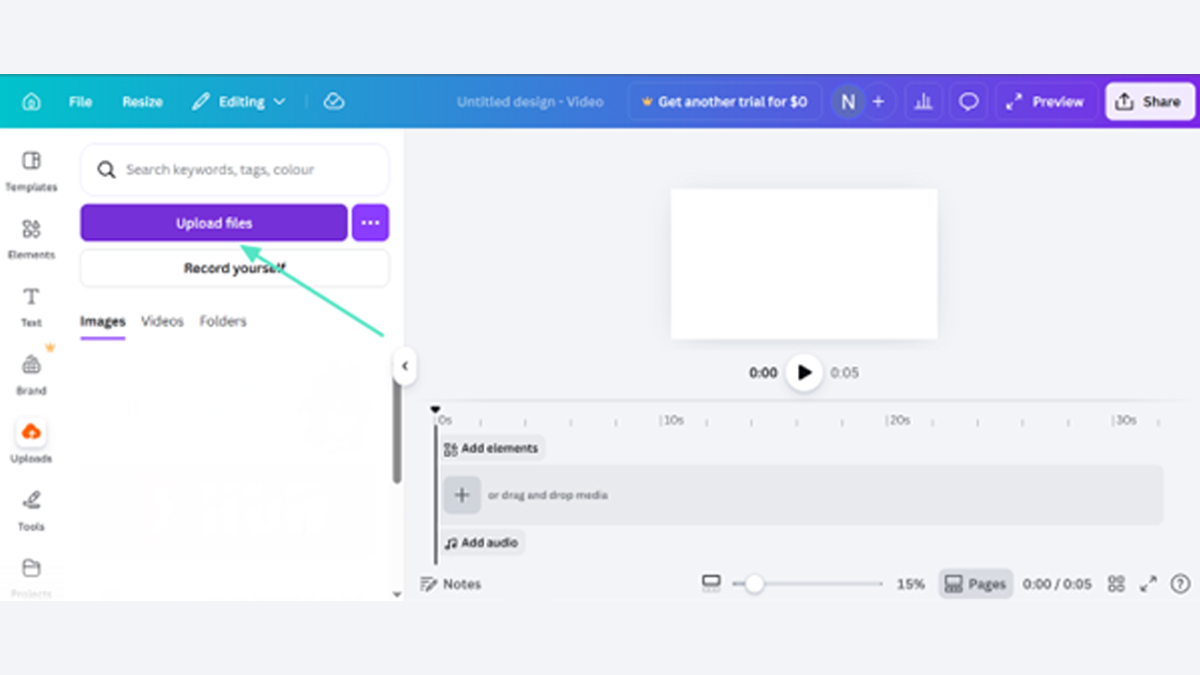
Step 2. Once you add a video, navigate to the “Edit” option and choose the “BG Remove” option.

Part 3. Why Filmora Desktop Is the Best Option Over Online Video Background Remover
Many users prefer Filmora over online video background remover tools for advanced editing. In this particular part, you will explore why Filmora is a better choice:
1. Smart Cutout: Smart Cutout detects objects and removes backgrounds using an intelligent brush control system. It tracks subject movement and keeps edges stable across the entire video smoothly.
2. Multi-layer: Filmora provides a multi-layer timeline for adding backgrounds, text, and visual effects together. Online tools lack this control, making editing less flexible and more limited overall.
3. Multiple AI: The tool offers AI Portrait, Smart Cutout, and chroma key for different video types. This helps users handle people, objects, and green screen videos in one place.
4. No Limits: It does not limit usage like online video background remover tools with quotas. Users can edit multiple clips freely without worrying about credits or restrictions.
5. Edge Control: Users can adjust feather, thickness, and softness for clean and natural edges. This makes blending smoother and improves overall video background removal results clearly.
Conclusion
In conclusion, choosing a reliable video background remover is the best way to make your content look clean. This guide showed how different tools help you fix messy scenes without any hard work. However, if you want more power and better quality for your long projects, you need a desktop app. Therefore, we highly suggest using Filmora for all your professional editing needs.
(All articles published here are Syndicated/Partnered/Sponsored feed, LatestLY Staff may not have modified or edited the content body. The views and facts appearing in the articles do not reflect the opinions of LatestLY, also LatestLY does not assume any responsibility or liability for the same.)